Excel Merge
Use this to roll up monthly sales reports into a yearly file, combine customer lists from different regions, or bring several CSV exports into a single workbook.
Version 0.1.46 is permanently free with all 76 tools and modules. No usage quota, time limit, license key or subscription.
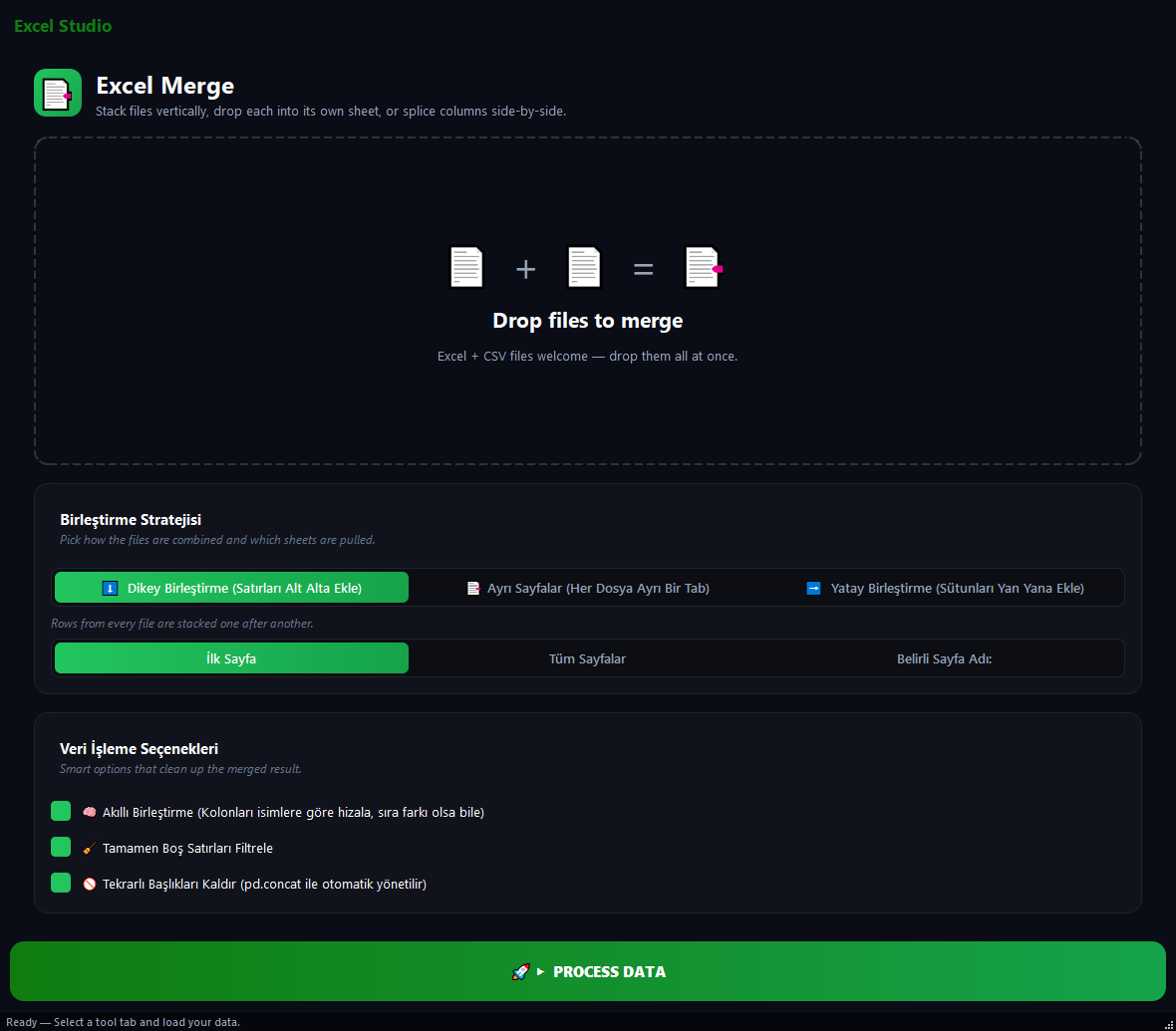
What it does
Use this to roll up monthly sales reports into a yearly file, combine customer lists from different regions, or bring several CSV exports into a single workbook.
How to use it
- 1Drag files into the list.
- 2Pick a Merge Mode: Vertical, Separate Sheets or Horizontal.
- 3Set Sheets to Merge: first sheet, all sheets, or specific sheet name.
- 4Adjust the data-processing options if needed.
- 5Click Run.
Use cases
Roll up monthly sales into a yearly file
Add the 12 monthly xlsx files, Vertical Merge, run with defaults. One file with all twelve months.
Region reports as separate tabs
Add Marmara, Aegean and Central xlsx files, pick Separate Sheets. One workbook with three tabs.
Add orders next to customer details (horizontal)
Add the two files, Horizontal Merge, Link Column customer_id. Order info gets attached next to customer info.
Pull a sheet out of each department file
Add all department files, pick "Specific Sheet Name", type Summary. Only the Summary sheet from each file is merged.
Frequently asked questions
Is Excel Merge free?
Yes. Version 0.1.46 is permanently free with all 76 tools and modules included. There is no usage quota or time limit, and no license key, account or subscription is required.
Local processing
Runs on your CPU/GPU. No file leaves your machine.
Batch ready
Process dozens or thousands of files in one run.
Part of BulkPro
Bundled with 76 tools across 7 modules: one install, one app.
Full UI reference, step-by-step workflows, edge cases
Every input, button, and behavior documented for advanced users.