PDF Organize
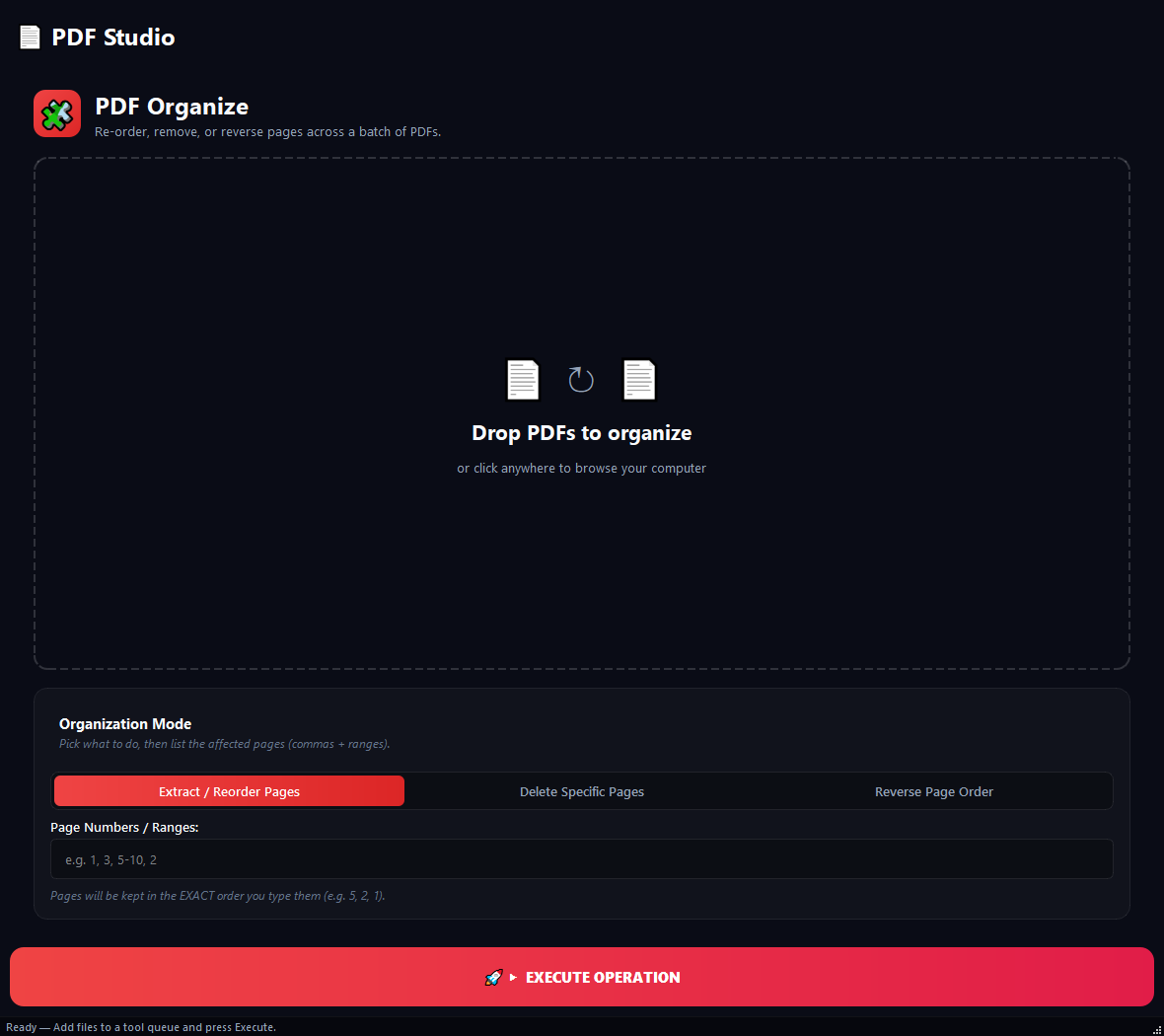
Use this when you need to pull out specific pages of a PDF, drop unwanted pages, or reorder them.
Version 0.1.46 is permanently free with all 76 tools and modules. No usage quota, time limit, license key or subscription.
What it does
Use this when you need to pull out specific pages of a PDF, drop unwanted pages, or reorder them. Think of pulling chapter 5 out of a 200-page book, removing blank slides from a deck, or flipping a report end-to-front.
How to use it
- 1Drag PDFs into the list.
- 2Pick an Organization Mode: Extract, Delete or Reverse.
- 3For Extract or Delete, type the pages into Page Numbers (e.g. 1, 3, 5-10, 2).
- 4Click Run.
Use cases
Pull a chapter out of a book
Add book.pdf, pick Extract, type 45-120, run. You get a 76-page PDF.
Remove blank slides from a deck
Add the deck, pick Delete, type 3, 7, 15, run.
Reorder pages
Add the PDF, pick Extract, type 5, 2, 1, 3, 4. The pages come out in that order.
Flip a document end-to-front
Add the PDF, pick Reverse, run. No page numbers needed.
Frequently asked questions
Is PDF Organize free?
Yes. Version 0.1.46 is permanently free with all 76 tools and modules included. There is no usage quota or time limit, and no license key, account or subscription is required.
Local processing
Runs on your CPU/GPU. No file leaves your machine.
Batch ready
Process dozens or thousands of files in one run.
Part of BulkPro
Bundled with 76 tools across 7 modules: one install, one app.
Full UI reference, step-by-step workflows, edge cases
Every input, button, and behavior documented for advanced users.